




CS2 Best Settings for 2026: The Complete Competitive Guide
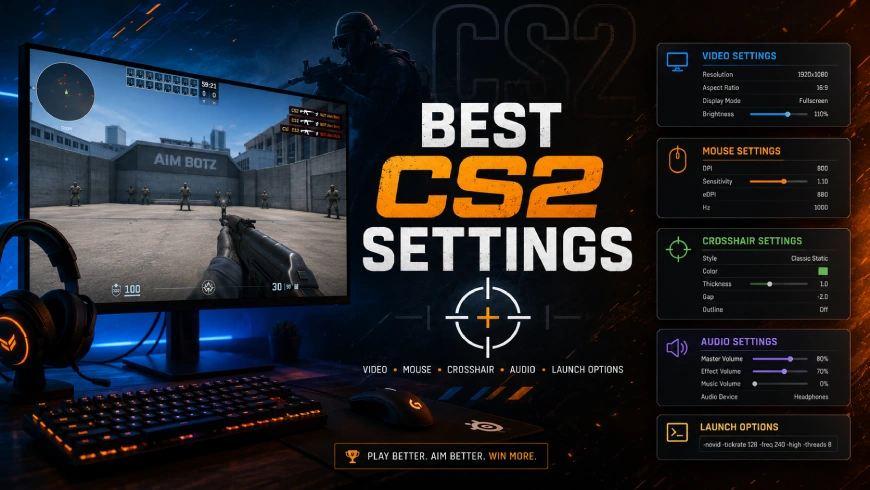
Getting your CS2 settings right is one of the fastest and most impactful ways to improve your game. Unlike grinding aim for months, a proper settings optimization can be done in under an hour, and the results show up immediately.
This guide covers every setting that matters: video, resolution, mouse and sensitivity, crosshair, audio, and launch options. Each section explains not just what to set, but why, so you understand the reasoning behind every recommendation and can make smart adjustments for your own hardware.
Video Settings
Your video settings are the foundation of everything else. The goal is simple: maximum frames per second, minimum input lag, and maximum visibility of enemy player models.
Here are the recommended settings for competitive play:
| Setting | Recommended Value | Reason |
| Display Mode | Fullscreen | Lowest possible input latency, never use Windowed or Borderless |
| Brightness | 100–110% | Brighter = easier to spot enemies in dark corners |
| V-Sync | Disabled | V-Sync introduces input lag. Disable it always |
| Motion Blur | Disabled | Blurs moving targets and actively hurts your aim |
| Boost Player Contrast | Enabled | Makes player models pop from backgrounds. One of the most important settings |
| NVIDIA Reflex Low Latency | Enabled (or Enabled + Boost) | Reduces input lag by approximately 15ms on RTX cards |
| NVIDIA G-Sync / AMD FreeSync | Disabled | Can add latency in competitive scenarios |
| Multisampling Anti-Aliasing (MSAA) | 4x or 8x MSAA | Smooths jagged edges on player models without tanking FPS like FXAA does |
| Global Shadow Quality | High or Medium | Do not set this to Low. Enemy shadows visible around corners give real game information |
| Dynamic Shadows | All | Same reason as above |
| Model / Texture Detail | Low | No competitive benefit at higher settings; saves FPS |
| Texture Filtering Mode | Bilinear or 4x | Minimal visual impact; save resources here |
| Shader Detail | Low | Another resource-saver with no competitive downside |
| Particle Detail | Low | Smoke and explosion effects do not need to be high quality |
| Max FPS in Game | 0 (unlimited) or match your monitor refresh rate | Unlimited frames = lowest possible latency |
The shadow exception: In most competitive shooters, pros turn shadows off entirely. CS2 is different. You can genuinely see an enemy's shadow before they peek a corner. Keep shadow quality on High or Medium.
These are some settings you can safely ignore:
- Film Grain: Disable it. It adds visual noise that can obscure player models in certain conditions.
- FXAA Anti-Aliasing: Avoid this, as it blurs the image rather than smoothing it properly. Stick to MSAA.
- Upscaling (FSR/DLSS): Disable for competitive play. Both options introduce blur that makes enemy models harder to spot at distance.
Resolution Guide
Resolution is the most debated setting in all of Counter-Strike, and the debate has been going on since 2013. Here is where things stand in 2026.
The Three Common Choices
1920×1080 (16:9, Native) The clearest, widest image. You see more of the map on your screen. Player models appear at their correct proportions. If you are new to the game, starting here is strongly recommended, as the minimap is easier to read and your spatial awareness will develop faster.
1280×960 (4:3, Stretched) This is the most popular choice among professional players, with roughly 70% of pros playing stretched in 2026. When stretched to fill a widescreen monitor, player models appear wider than normal, so some players find wider models easier to track and hit. The tradeoff is that you lose peripheral vision on the sides of your screen. Donk, ZywOo, and most top players in the world use this resolution.
1280×960 (4:3, Black Bars) Same resolution as stretched, but the image is not stretched. Instead, black bars appear on the left and right sides of your screen. You get slightly smaller player models but without the distorted proportions. Some players find this easier on the eyes over long sessions.
If you are wondering which one to use, here is a quick breakdown:
- If you are new to CS2: Start at 1920×1080. Learn the game first.
- If you are switching from CS:GO: Your old resolution carries over directly.
- If you want to try stretched: Give it at least 2–3 weeks before judging. Muscle memory takes time to adapt.
To enable 4:3 stretched, you need to configure your GPU control panel. On NVIDIA, go to Display → Adjust Desktop Size and Position → set to "Full-Screen" (not Aspect Ratio). AMD users can do the same through Radeon Software.
Refresh Rate
Set your in-game and Windows refresh rate to match your monitor's maximum rate. Most competitive players use 240Hz or 360Hz monitors in 2026. If your monitor supports it, make sure both your Windows display settings and CS2 are set to use it. A mismatch means you are leaving frames on the table.
Mouse & Sensitivity
This is the most personal setting in the game. That said, there are clear upper and lower limits, backed by data from professional players.
Understanding eDPI
eDPI (effective DPI) is the only number that matters when comparing sensitivities between players. It removes the hardware variable so you can make apples-to-apples comparisons.
eDPI = Mouse DPI × In-Game Sensitivity
For example: 800 DPI × 1.0 sensitivity = 800 eDPI. Or 400 DPI × 2.0 sensitivity = 800 eDPI. Both feel identical in game.
What the Pros Use
The average eDPI among CS2 professionals falls between 700 and 900, with a median around 830–850. Very few professionals use an eDPI above 1200, and almost none exceed 1500.
General guidance by playstyle:
- Entry fraggers / aggressive players: eDPI 900–1200 (faster flicks, quick angle clearing)
- Riflers / all-round players: eDPI 700–1000
- AWPers: eDPI 600–900 (precision scope adjustments favor lower sensitivity)
If you are coming from a game like Valorant where you play at a very high sensitivity, dropping down gradually (slightly each day) is easier on your muscle memory than making a sudden large change.
Most professional players use 400 or 800 DPI. At the same eDPI, they feel virtually identical in game. 400 DPI is the traditional standard; 800 DPI has become equally common. Pick whichever you prefer for desktop use and adjust your in-game sensitivity accordingly.
Essential Mouse Settings
- Raw Input: On. This bypasses Windows mouse processing entirely for the most direct 1:1 movement.
- Mouse Acceleration: Off, both in CS2 and in Windows. Open Windows mouse settings and uncheck "Enhance Pointer Precision."
- Windows Sensitivity: 6/11 (the default, middle position). Never change this; it is the only position with no acceleration built in.
- Zoom Sensitivity Multiplier: 1.0 is standard, though AWP players sometimes adjust this to taste.
- Polling Rate: 1000Hz is the competitive standard. Some newer mice support 4000Hz or 8000Hz, as these can feel slightly smoother, but the difference is marginal and not necessary.
Crosshair Settings
Your crosshair is highly personal, but there are sensible starting points used by the vast majority of competitive players.
Static vs. Dynamic
Most competitive players use a Classic Static crosshair that does not expand when you move or shoot. Dynamic crosshairs that expand on movement can be distracting and give a false sense of where your shots will land (since CS2 uses a separate bullet spread system). Static crosshairs are cleaner and more consistent.
Follow Recoil (New in CS2)
CS2 introduced a "Follow Recoil" option that moves your crosshair to show you where your bullets are actually going during recoil compensation. This is genuinely useful for learning spray patterns on new weapons, but most experienced players keep it disabled because the moving crosshair becomes distracting once you know the patterns.
A Good Starting Crosshair
If you are not sure where to start, these values produce a clean, small, static crosshair similar to what many pros use:
cl_crosshairsize 2
cl_crosshairthickness 0
cl_crosshairgap -3
cl_crosshaircolor 4
cl_crosshairstyle 4
cl_crosshairdot 0
cl_crosshair_drawoutline 0
Color 4 is the classic cyan/light blue. You can also set it to green (5) or white (2), whatever you can see clearly on all map backgrounds.
How to Import a Crosshair Code
Many players share crosshairs as import codes (formatted as CSGO-XXXXX-XXXXX-XXXXX-XXXXX-XXXXX). To use one:
- Open CS2 and go to Settings → Game → Crosshair
- Click the share/import icon
- Paste the code and click Apply
The crosshair updates immediately with no restart needed.
Do not change your crosshair constantly. Pick one and stick with it for at least a month. Crosshair familiarity is a real skill.
Audio Settings
Audio is the most underrated category in this entire guide. Hearing an enemy's footsteps, a distant reload, or a rotating CT can win you a round without firing a single shot.
The Core Audio Settings
| Setting | Recommended Value |
| Master Volume | 0.6–0.8 |
| Music Volume | 0 |
| Main Menu Volume | 0 |
| Round Action Volume | 0 |
| Round End Volume | 0 |
| Ten Second Warning | 0.05–0.1 |
| Bomb / Hostage Volume | 0.4 |
| Play Audio When Game in Background | Disabled |
| Audio Output Configuration | Stereo Headphones |
| EQ Profile | Natural (or Crisp - see below) |
| Perspective Correction | On |
| L/R Isolation | 0% |
The EQ Profile Debate: Crisp vs. Natural
In 2026, data from over 60 professional players shows that approximately 62% prefer the Natural EQ profile, while a significant portion use Crisp. Nobody uses Smooth.
- Crisp boosts high frequencies, making footsteps and weapon reloads cut through gunfire and explosions more distinctly. Better for players in loud environments or who struggle to hear subtle cues.
- Natural provides a more balanced, realistic audio profile. Preferred for long sessions due to less ear fatigue.
Try Crisp first if you are struggling to hear enemies. Switch to Natural if you find it harsh over time.
Perspective Correction
Keep this On. It makes audio behave differently depending on where the sound source is relative to your position, improving your ability to identify whether an enemy is to your left, right, above, or below you. 75% of professional players leave this enabled.
Avoid Virtual Surround Sound
Do not use Windows Sonic, Dolby Atmos, or third-party surround sound software with CS2. The game is designed for stereo output, and virtual surround processing often muddies footstep directional cues, making it harder to locate enemies. Use quality stereo headphones and configure the game in stereo mode.
Music and Round Sounds
Set all music-related volumes to 0. Main menu music, round end fanfares, and round action sounds can mask subtle audio cues during the buy phase and around round transitions. The Ten Second Warning is the one exception. A small audible reminder that the round is ending is genuinely useful.
Launch Options
Launch options are commands entered in Steam that tell CS2 how to start before you even reach the main menu. Some are universally useful; others from older CS:GO guides are outdated and can cause problems in CS2.
Essential Launch Options (Use These)
Add these in Steam by right-clicking CS2 → Properties → General → Launch Options:
-novid -console -fullscreen
- -novid - Skips the Valve intro video on startup. Saves a few seconds every time you launch the game. Almost universally used.
- -console - Opens the developer console when you launch. Useful for applying commands quickly.
- -fullscreen - Forces exclusive fullscreen mode, ensuring the lowest possible input latency.
Useful But Optional
-high
This sets CS2 to a higher CPU process priority in Windows. Can help stability on mid-range systems, but has no effect on high-end hardware. Worth trying if you experience frame drops.
What to Avoid
Treat any launch option list from before 2023 with caution. Many commands from the CS:GO era have no effect in CS2, have been moved to in-game settings, or can cause stability issues. Stick to the short list above and only add commands when you have a specific, confirmed reason to do so.
Radar Settings
The default radar in CS2 is not optimized for competitive play. The main problem: it is centered on your player, which means the visible area of the map rotates as you rotate. This makes it hard to track enemy positions marked by teammates.
Open the developer console (press ` or ~) and enter these commands:
cl_radar_always_centered 0
cl_radar_scale 0.3
cl_hud_radar_scale 1.15
- cl_radar_always_centered 0 - Fixes the radar orientation so the map stays still. Much easier to read teammate callouts.
- cl_radar_scale 0.3 - Zooms out slightly so you can see more of the map at once.
- cl_hud_radar_scale 1.15 - Makes the radar slightly larger on your HUD so it is easier to read at a glance.
You can also check the Toggle Shape with Scoreboard option to show the full map layout when you open the scoreboard, useful for understanding enemy positions during timeouts.
HUD & Game Settings
A few in-game settings outside the main graphics and audio tabs are worth configuring:
Detach Silencer from M4A1-S and USP-S: Set to Off. Right-clicking with these weapons removes the silencer, which has no benefit whatsoever. Leaving this enabled means a misclick during a fight can cost you rounds. This is a frequently overlooked setting.
Max Acceptable Matchmaking Ping: Set this to a reasonable value (80–100ms) based on your region. Too high and you may get placed into high-ping servers; too low and queue times extend significantly.
HUD Color and Scale: Change your HUD color to something that stands out from map backgrounds. Cyan, Bright Green, and Purple are popular choices. Consider reducing HUD scale slightly to reduce screen clutter.
Display Network Connection Issues: Keep this Enabled. This shows you real-time packet loss warnings during matches so you know when your connection is causing issues.
Pro Player Settings at a Glance
Here is a quick reference of documented settings from some of the top CS2 players in 2026:
| Player | Team | DPI | Sensitivity | eDPI | Resolution | Aspect |
| donk | Team Spirit | 800 | 1.25 | 1000 | 1280×960 | 4:3 Stretched |
| ZywOo | Team Vitality | 400 | 2.0 | 800 | 1280×960 | 4:3 Stretched |
| ropz | Team Vitality | 800 | 0.9 | 720 | 1920×1080 | 16:9 Native |
| s1mple | NAVI | 400 | 3.09 | 1236 | 1280×960 | 4:3 Stretched |
| NiKo | G2 Esports | 400 | 1.25 | 500 | 1280×960 | 4:3 Stretched |
Important: Do not blindly copy a pro's settings. Their configurations are built around their specific playstyle, hand size, mousepad dimensions, and thousands of hours of muscle memory. Use these only as reference points.
Frequently Asked Questions
Should I play stretched or native resolution?
Both are viable. About 70% of CS2 professionals use 4:3 stretched (usually 1280×960). Stretched makes player models appear wider; native (1920×1080) gives you a wider field of view. If you are new, start native. Experiment with stretched after you have some hours in the game.
What eDPI should I use?
The professional median is around 830–850 eDPI. If you are playing above 1500 eDPI, it is very likely holding your aim back; consider dropping gradually over a few weeks.
Does 400 DPI feel different from 800 DPI at the same eDPI?
At the same eDPI, 400 and 800 DPI feel essentially identical in-game. The choice is mostly personal preference for desktop use.
Should I use shadows or turn them off for more FPS?
Keep shadows on at least Medium. CS2 shadows provide real game info, as you can see enemy shadows before they peek a corner. This is genuinely useful information that is worth the FPS cost.
Are old CS:GO launch options still valid?
Most are not. Many commands from CS:GO have no effect in CS2 or have been built into the game's settings. Stick to -novid, -console, and -fullscreen as your foundation.
What headphones should I use?
Any quality stereo headset works well, but the key is to use it in stereo mode. Virtual surround sound (Windows Sonic, Dolby Atmos, etc.) often distorts CS2's directional audio rather than improving it.
Summary: Quick Settings Checklist
Use this checklist to set everything up in one session:
Video
- Display Mode: Fullscreen
- V-Sync: Disabled
- Motion Blur: Disabled
- Boost Player Contrast: Enabled
- Global Shadow Quality: High or Medium
- NVIDIA Reflex: Enabled (RTX GPU users)
- MSAA: 4x
- Model / Texture Detail: Low
Mouse
- Raw Input: On
- Mouse Acceleration: Off (Windows and in-game)
- Windows Sensitivity: 6/11
- eDPI: 700–1000 range to start
Audio
- Music Volume: 0
- Audio Output: Stereo Headphones
- EQ Profile: Natural or Crisp
- Perspective Correction: On
- Virtual Surround: Off
Launch Options
- -novid -console -fullscreen
Radar
- cl_radar_always_centered 0
- cl_radar_scale 0.3
Game
- Detach Silencer: Off
Settings change as Valve updates the game. This guide is kept up to date, bookmark it and check back after major CS2 patches.